Fusion 360 Sketch Constraints
Updated: 2026-05*
This article was written before 2020. It is kept here as an archive — the content is outdated and some links may no longer work.
What Is Restraint?
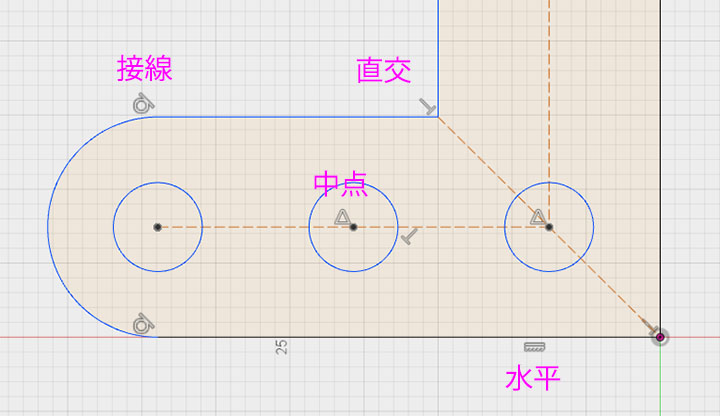
There are various types of constraints, and an icon like the one shown below appears on the constrained shape.
By constraining the relationships between shapes according to specific rules, it becomes possible to create and modify drawings efficiently.
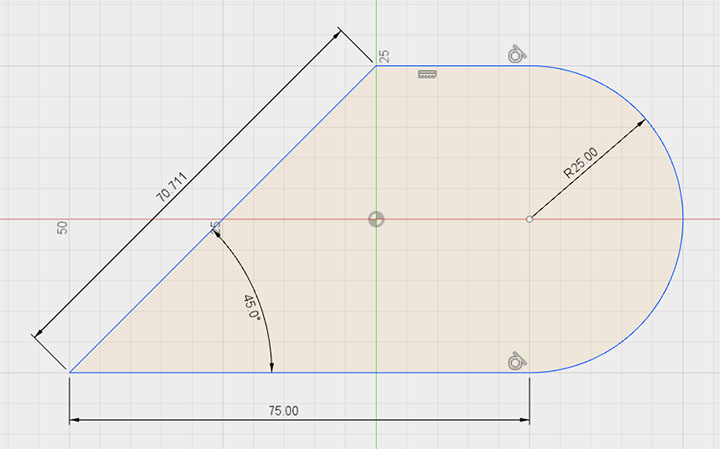
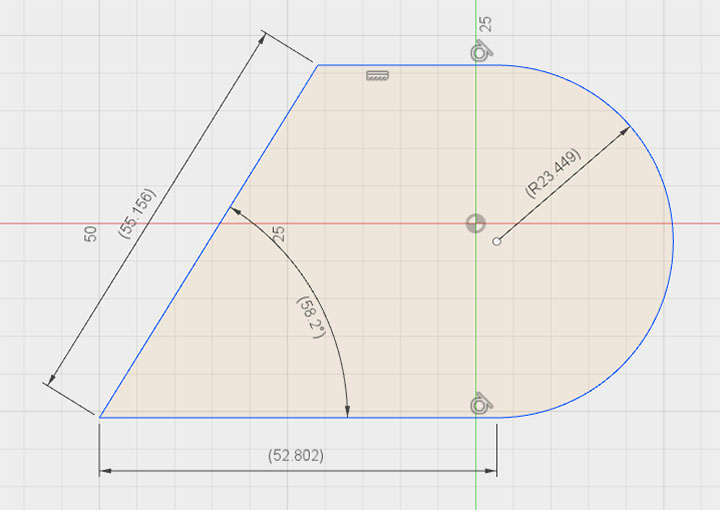
Sketch Dimensions
Sketch dimensions are also a type of numerical constraint. To change them, double-click the value.
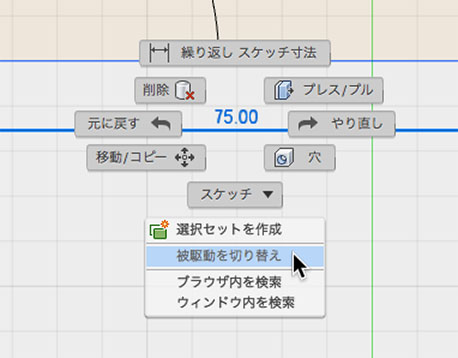
To display unconstrained dimensions, right-click on the dimension with the Selection tool and choose “Toggle Constrained” from the menu. Once you toggle this setting, you cannot revert it; if you want to reapply constraints, delete the dimension and then apply it again.
The dimensions are displayed, but you can adjust them by dragging.
Automatic Restraint
Constraints can not only be set manually, but they are also set automatically when drawing shapes.
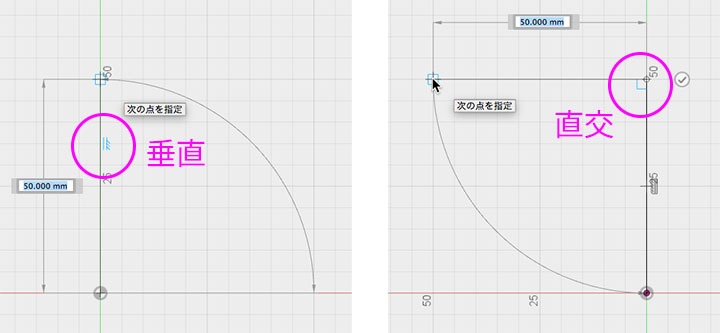
Before a shape is finalized, constraint candidates are displayed as blue icons, as shown below.
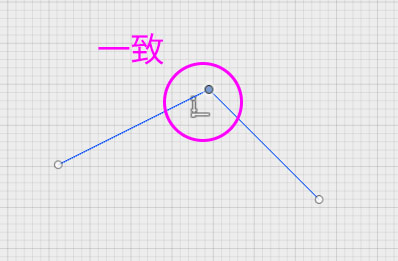
Alignment constraints are automatically applied to the connection points of line segments and curves.
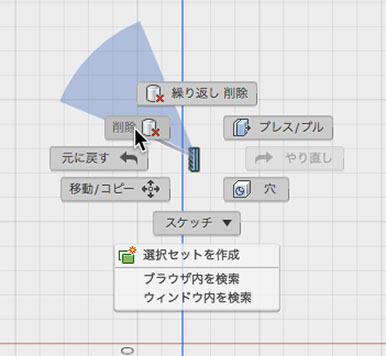
To remove a constraint, right-click the constraint icon and select “Delete.”
Origin Constraint
If you draw a shape from the origin, it is automatically constrained and cannot be moved.
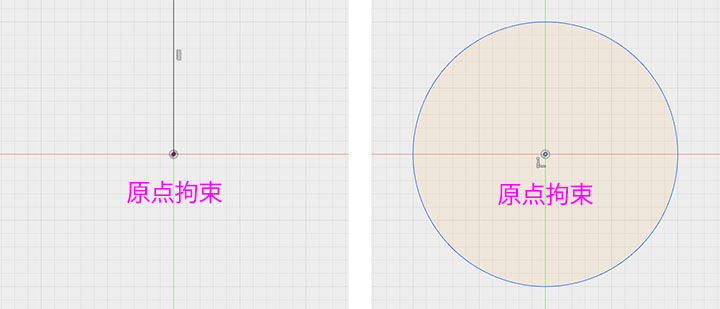
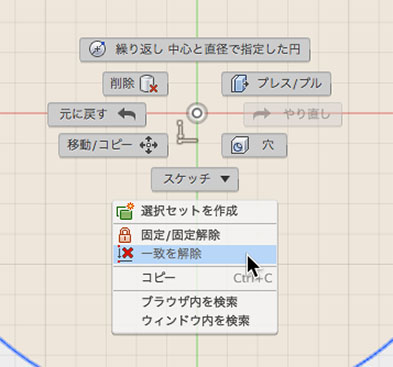
To release the origin constraint, right-click on the point at the origin or the alignment icon and select “Release Alignment.”
Manual Restraint Procedure
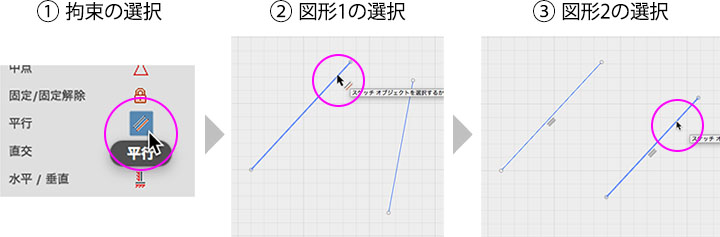
There are two ways to set constraints manually.
Method 1)
Method 2)
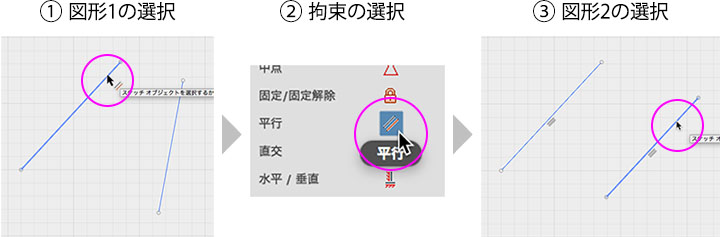 As long as the constraint icon remains active, you can continue to set constraints one after another.
To disable the constraint icon, click the constraint icon, press the ESC key, or click the selection tool.
Match
Align the points. Once aligned, they will be connected. Constraints are applied even when aligned manually.
In the case of line segments, their length changes as they are translated.
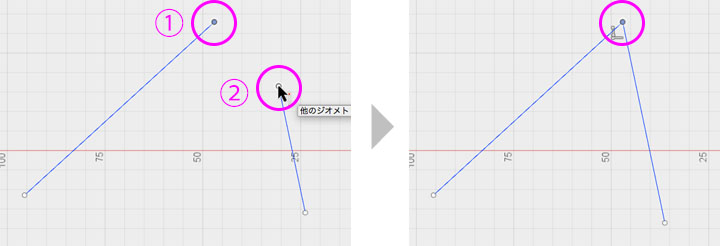
To remove the constraint, right-click the icon and select “Delete.”

On the Same Line
Select the two lines and align them on the same straight line. Once they are on the same straight line, you can drag them to move them.
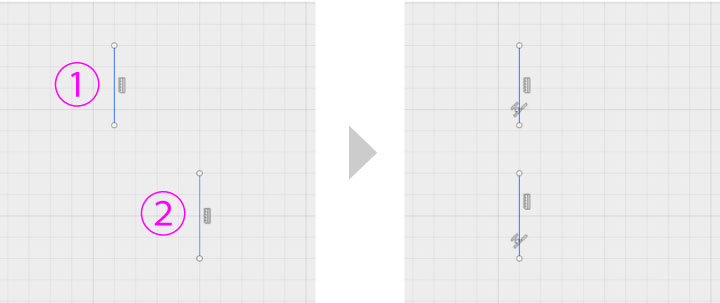
To remove the constraint, right-click the icon and select “Delete.”

Concentric Circles
You can select two circles and constrain them as concentric circles.
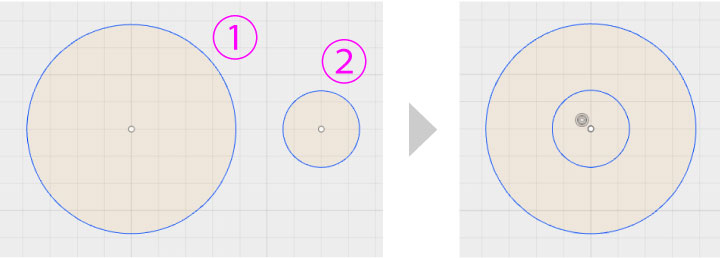
It can also be applied to arcs, ellipses, and arcs in slots.
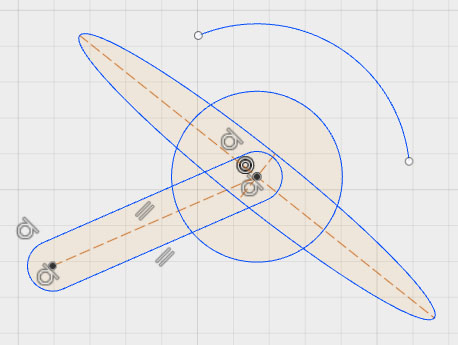
To remove the constraint, right-click the icon and select “Delete.”

Midpoint
Align a point on the second shape with the midpoint of the first shape.
If the second shape is a circle, the effect is applied to the center; if it is a line segment, the effect is applied to the selected point.
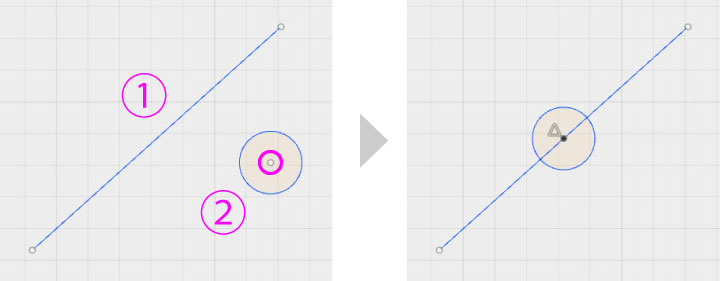
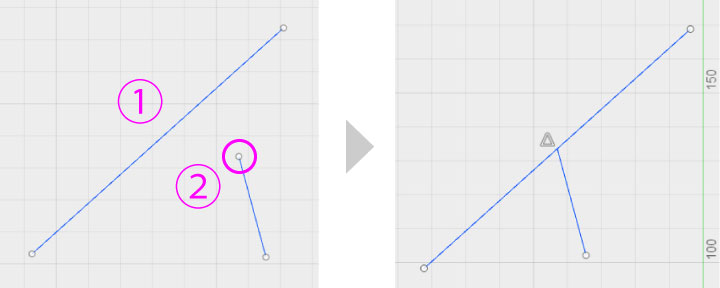
To remove the constraint, right-click the icon and select “Delete.”

Pin/Unpin
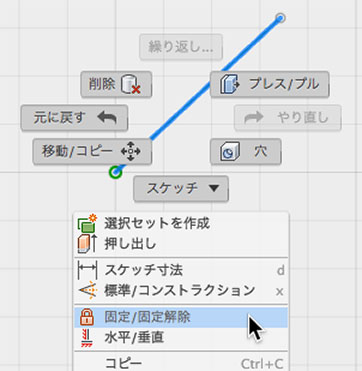
You can lock points and line segments. By combining multiple locks on a single shape, you can restrict the range of motion. Locked line segments and points are displayed in green.
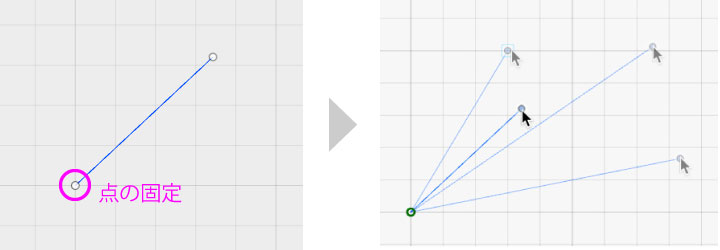
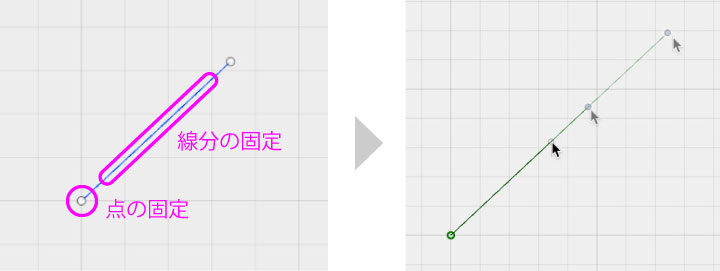
To release a constraint, select the constrained element and click “Lock/Unlock” in the Sketch palette, or right-click the constrained element as shown below and select “Lock/Unlock” from the menu.
Parallel
Make the two line segments parallel. This can also be applied to line segments that are part of rectangles or polygons.
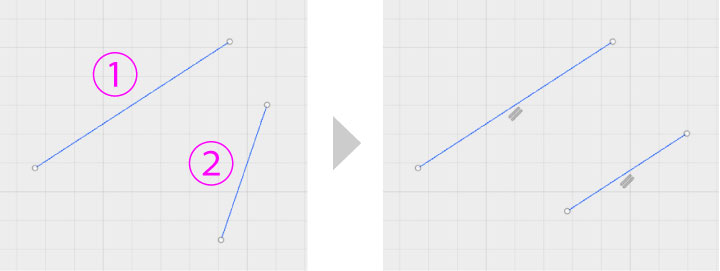
To remove the constraint, right-click the icon and select “Delete.”

Orthogonal
Make two line segments perpendicular to each other. This applies not only to line segments but also to curve handles.
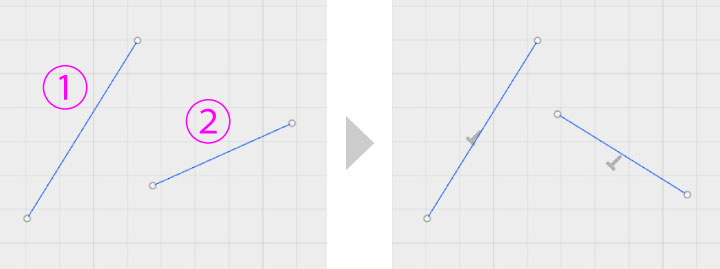
To remove the constraint, right-click the icon and select “Delete.”

Horizontal/Vertical
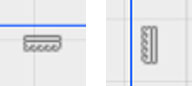
Make the line segment horizontal or vertical. Automatically constrain it to the closest possible orientation.
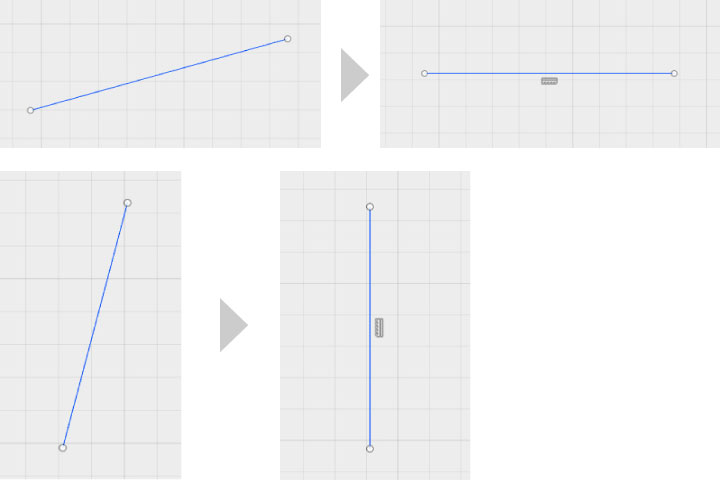
To remove the constraint, right-click the icon and select “Delete.”
Tangent
Make a circle or an arc tangent to a line segment.
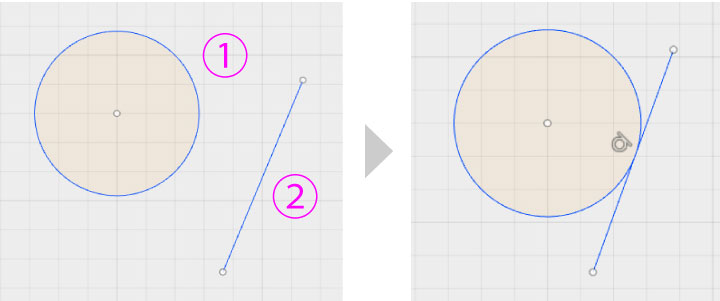
To remove the constraint, right-click the icon and select “Delete.”

Equal
Make the properties of identical shapes (line segment lengths, diameters of circles and arcs, and curve handle lengths) equal.
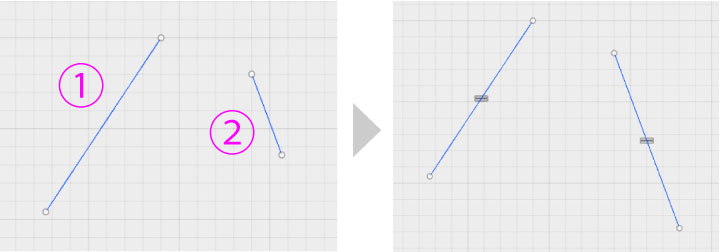
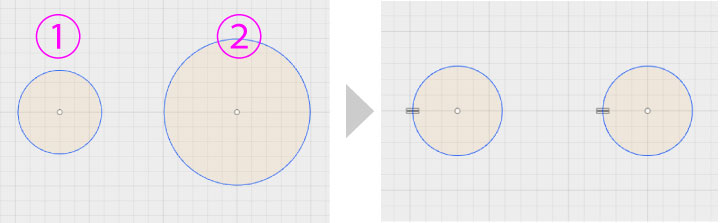
To remove the constraint, right-click the icon and select “Delete.”

Symmetry
Constrain two shapes to be symmetrical. While the lengths of line segments are not constrained, the diameters of circles are constrained.
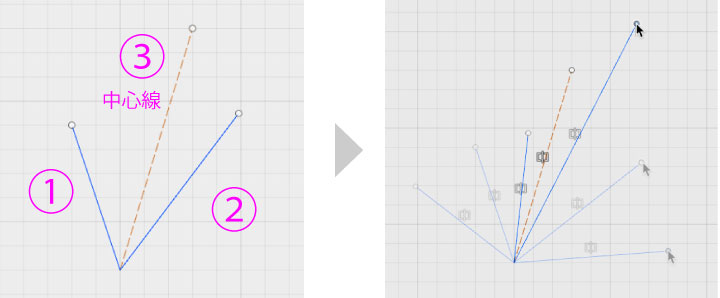
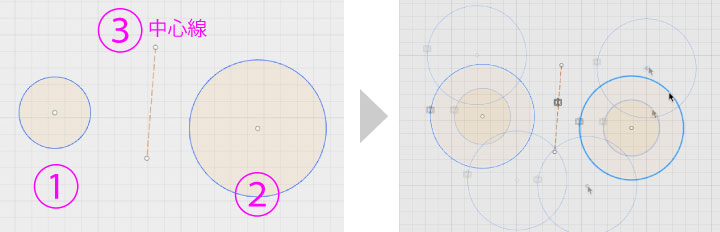
The Sketch Menu > Mirror command allows you to create a copy of a shape and apply a symmetry constraint to it all at once.
To remove the constraint, right-click the icon and select “Delete.”
