Max Basics - Part 2
Updated: 2026-05
This article was written before 2020. It is kept here as an archive — the content is outdated and some links may no longer work.
Message Box
① Adding a Message Box
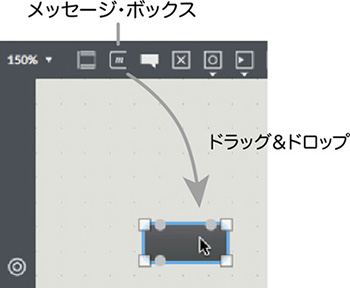
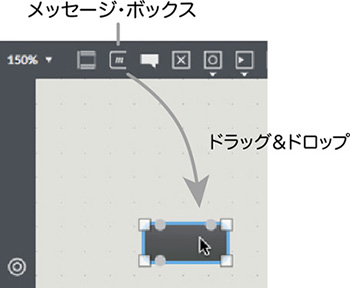
Click the message box icon below or drag-and-drop it to add one. The keyboard shortcut is the M key.
② Entering a Message
Like the object box, a message box does nothing just by being added. As shown below, a cursor blinks inside the message box; type the message there.
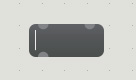
A message box outputs its message from the outlet each time it receives a bang at its inlet. When the patcher window is locked, you can also click the message box like a button to output the message.
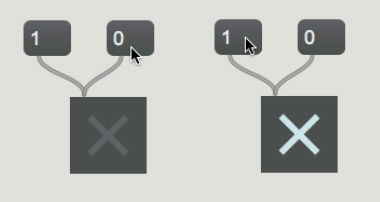
In the example below, sending 1 or 0 to a toggle switches it ON/OFF.
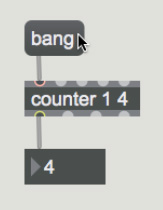
In the example below, a message box can be used in place of a button to send a bang.
The example below shows message boxes connected to each other. A message box can receive the message itself at its second inlet.
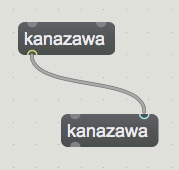
In this way, message boxes let you send various commands to specific objects. The messages an object can receive are documented in its help file.
Video File Playback
Jitter is a group of objects specialized for video processing — their names start with “jit.”.
① Adding jit.movie
Add an object box and type “jit.movie”.
② Adding jit.pwindow
Click jit.pwindow from the Jitter category of Add object in the toolbar.
Alternatively, type “jit.pwindow” into an object box.
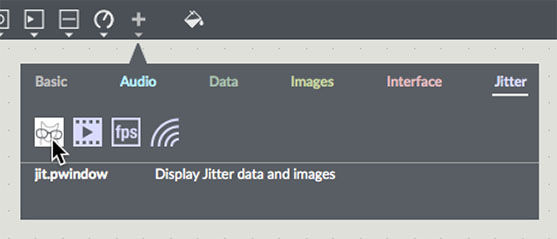
A black object (jit.pwindow) is added. It is too small as-is; hold the SHIFT key and drag a corner to resize while constraining the aspect ratio.
You can also specify the window size numerically from the inspector (the i icon on the right).
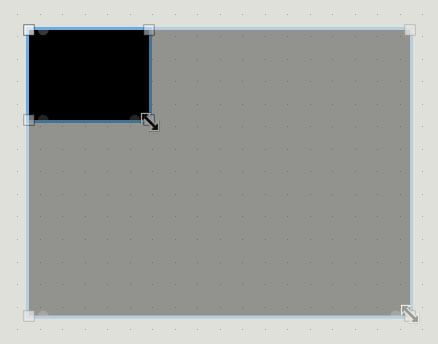
Connect the first outlet of jit.movie to the first inlet of jit.pwindow.
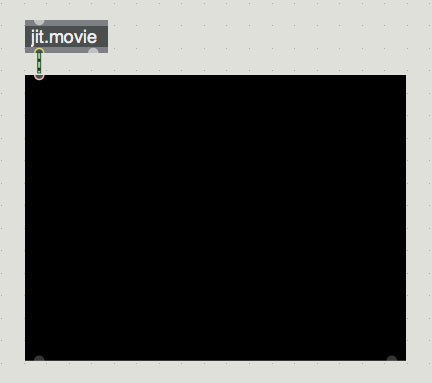
③ Adding playbar
Add an object box and type “playbar”.
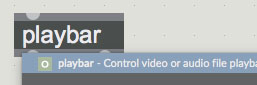
It automatically changes to the interface shown below.

Connect the first outlet of playbar to the first inlet of jit.movie.
The playbar’s interface color changes upon connection.
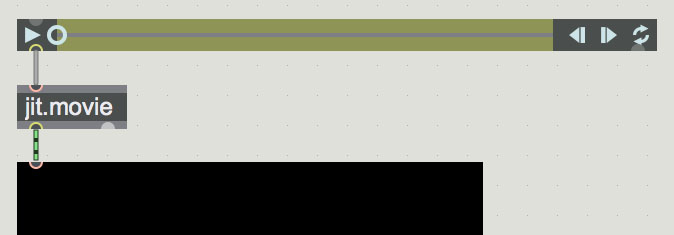
④ Adding a Message Box (for Loading a Video File)
Add a message box and type “read chickens.mp4”.
Connect the first outlet of the message box to the first inlet of jit.movie.
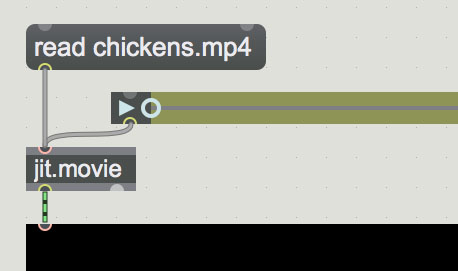
⑤ Loading and Playing a Video File
Lock the patcher and click the message box to play the video.
Use the playbar to play/stop and change loop settings.
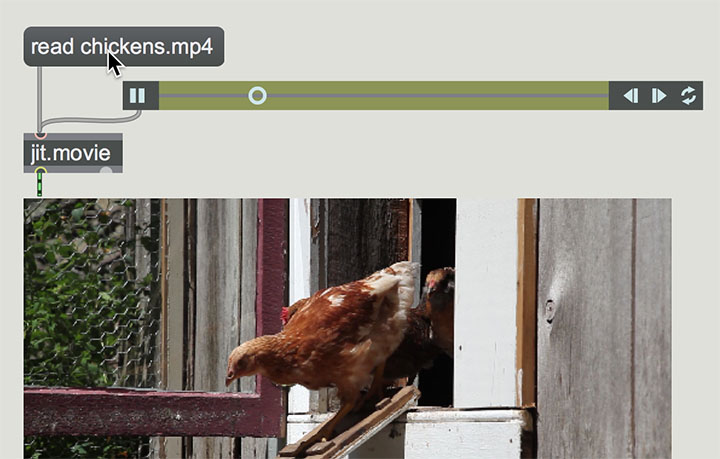
⑥ Other Video Files
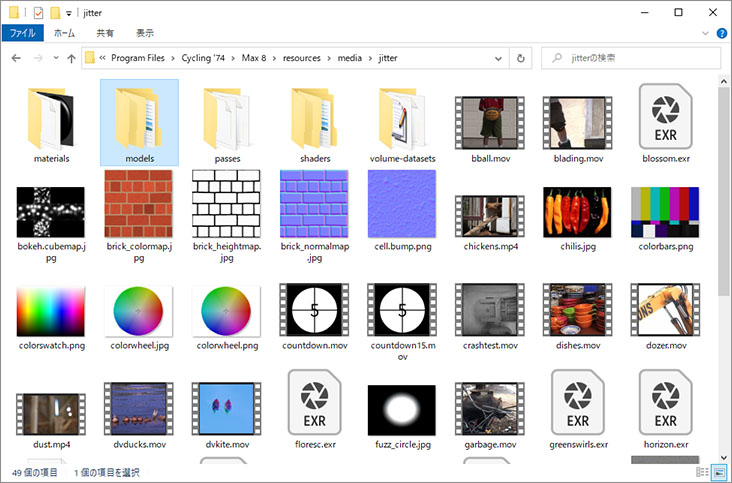
Max’s bundled video files are stored in the following locations:
- Windows: /Program Files/Cycling ‘74/Max 8/resources/media/jitter/
- Mac: /Applications/Max.app/Contents/Resources/C74/media/jitter/
You can load any video file in this folder by entering “read
Add message boxes that load countdown15.mov and bball.mov.
Click each message box to switch the playing video.
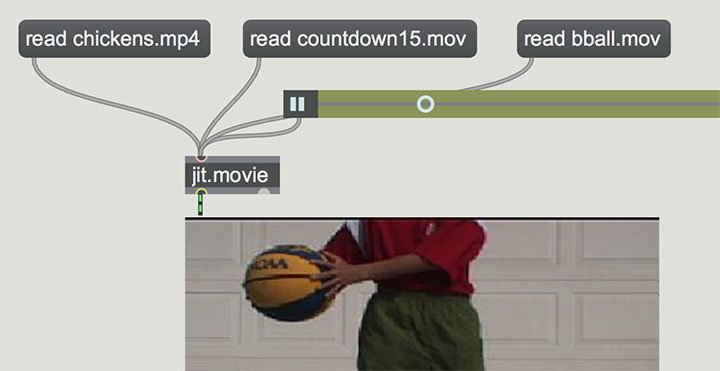
Each video file has different specifications, as shown below.
If the aspect ratio doesn’t match jit.pwindow, the video plays distorted.
chickens.mp4 1920×1080, 29.97fps
countdown15.mov 320×240, 15fps
bball.mov 320×240, 15fps
Specifying Playback Frame
Add a message box and type “frame_true $1, bang”.
Add a number box and connect as shown below.
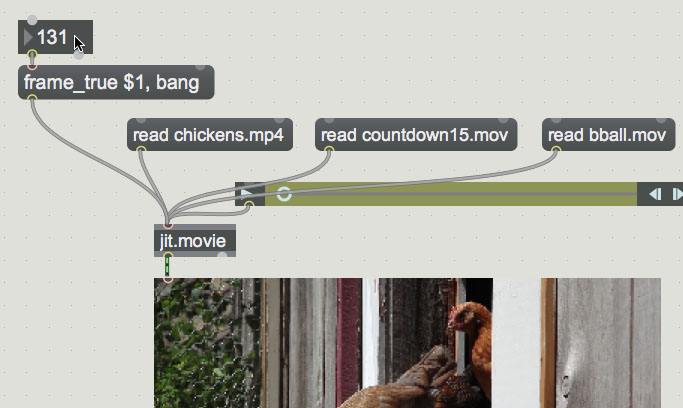
After locking the patch, change the number box value and verify that the video can be scrubbed.
Frame counts: chickens.mp4 378 frames, countdown15.mov 150 frames, ball.mov 68 frames.
A video’s frame count can be obtained using the getframecount message and the print object. See Help for details.
Random-Frame Playback Patch
Connect the elements you have built so far as shown below.
When the toggle is set to ON, frames of the video are played at random.
Try changing the random object’s argument to 300, 150, or 68 to match each video.
The video plays automatically when switched, so if performance is an issue, add the autostart attribute set to 0 to the jit.movie object.
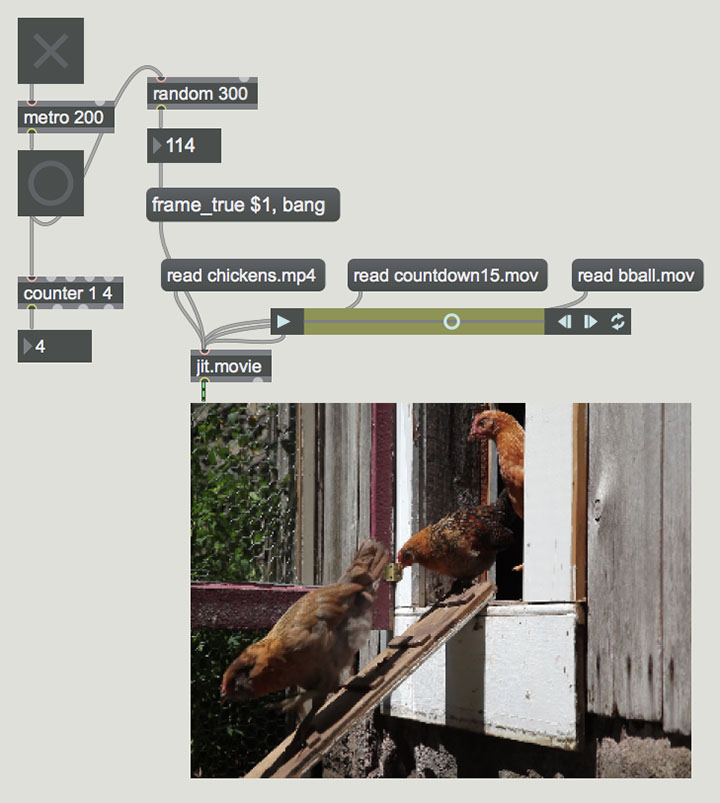
max2017_17.zip (no longer publicly available)
External Window and Fullscreen
Delete the jit.pwindow object and add a jit.window object.
The jit.window object plays video in a separate, independent window.
By adding the fullscreen message wiring shown below, you can switch to fullscreen with the ESC key. Details will be explained in class.
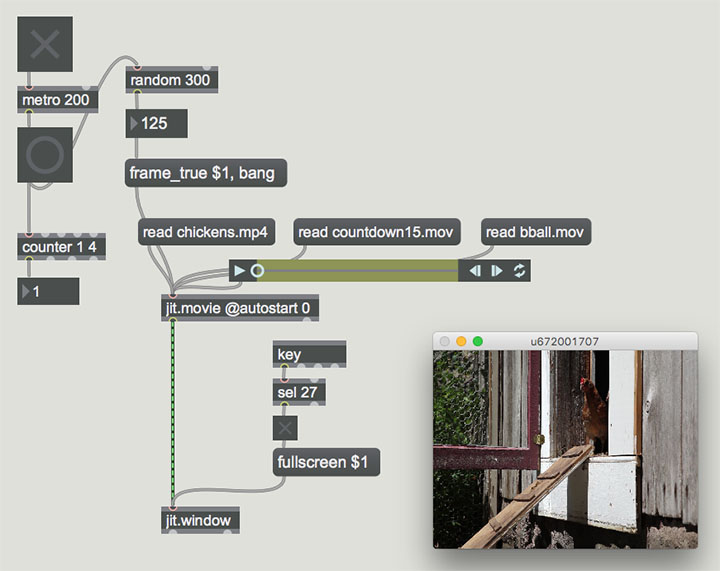
max2017_18.zip (no longer publicly available)