Max Basics - Part 3
Updated: 2026-05
This article was written before 2020. It is kept here as an archive — the content is outdated and some links may no longer work.
What is MIDI?
MIDI is short for Musical Instrument Digital Interface, a worldwide standard for digital interfaces between electronic musical instruments. It covers a wide range — from hardware and software for connecting instruments to exchange performance data, to file formats. Electronic instruments equipped with a MIDI interface are called MIDI controllers, and their sound source devices are called MIDI sound modules. MIDI is indispensable for music production with synthesizers and computers.
That said, MIDI was implemented in 1982 and has limitations in transmission speed and flexibility. As an alternative, OSC (Open Sound Control), which can transmit performance data over a network, has begun to be used. Even so, given the mix of old and new electronic instruments today, the MIDI standard will likely remain in use for some time.
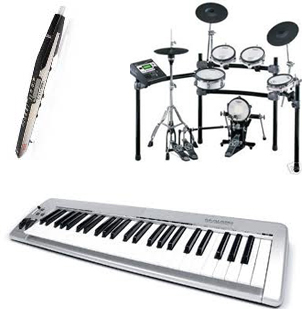
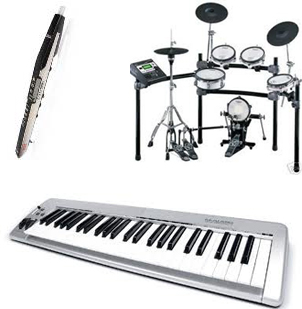
Various MIDI controllers
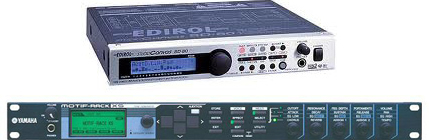
MIDI sound module (hardware)
MIDI Message Reference
Performance data in MIDI is exchanged using MIDI messages. There are several kinds of MIDI messages. This section covers Note On/Off and Program Change.
① Note On / Off
Note On message: a data set sent when a key is pressed.
Note Off message: a data set sent when a key is released.
Note On / Off messages consist of the following data:
Channel: switches between multiple sound sources (1–16)
Note number: pitch expressed as a number (0–127)
Velocity: how fast the key is pressed; loudness (0–127)
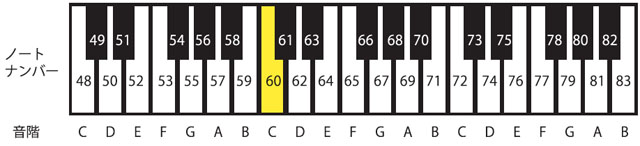
This time we don’t change channel or velocity — only the note number. Note numbers correspond to piano keys as shown below. Middle C = 60.
② Program Change
Program Change is used to change the timbre (instrument sound). For the available timbres, see General MIDI (GM). A few are listed below — you can see there are many.
1 Acoustic Piano
2 Bright Piano
3 Electric Grand Piano
4 Honky-tonk Piano
5 Electric Piano
6 Electric Piano 2
7 Harpsichord
8 Clavi
9 Celesta
10 Glockenspiel
11 Musical box
12 Vibraphone
13 Marimba
14 Xylophone
15 Tubular Bell
16 Dulcimer
17 Drawbar Organ
18 Percussive Organ
19 Rock Organ
20 Church organ
21 Reed organ
22 Accordion
23 Harmonica
24 Tango Accordion
25 Acoustic Guitar (nylon)
26 Acoustic Guitar (steel)
27 Electric Guitar (jazz)
28 Electric Guitar (clean)
makenote and noteout Objects
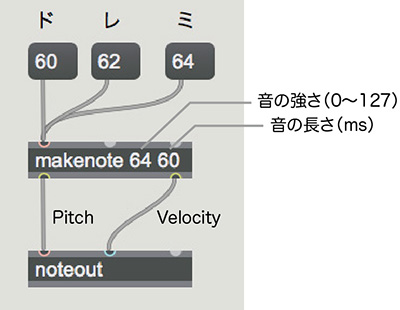
Use makenote and noteout in combination. The makenote object receives a MIDI note number at its inlet, takes note volume and note duration as arguments, and converts them to Pitch and Velocity. noteout uses that Pitch and Velocity to play a sound from a sound source (synthesizer or MIDI device).
In the figure below, makenote’s first argument is volume (1–128), and the second argument is note duration in ms. The 60, 62, 64 in the message boxes at the top correspond to the note numbers for Do, Re, Mi. See the previous section (MIDI Message Reference) for the note number / pitch table.
You can also play from a keyboard by combining with the key object.
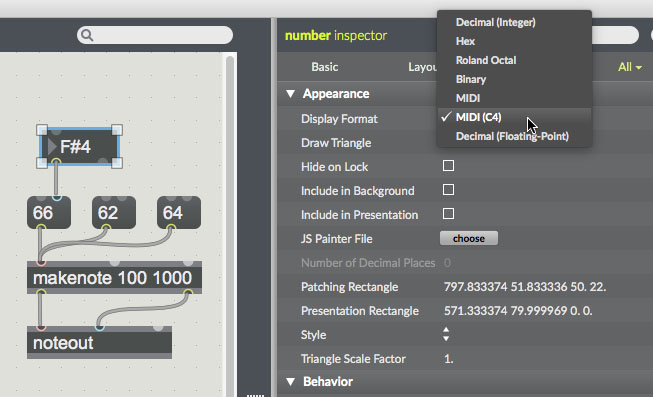
Instead of note numbers, you can specify pitches in international scientific pitch notation (note name + octave). Open the number box’s inspector and choose MIDI (C4) under Display Format.
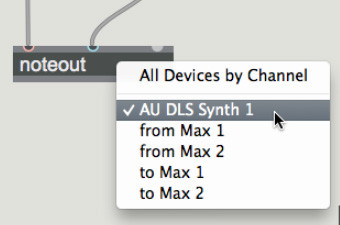
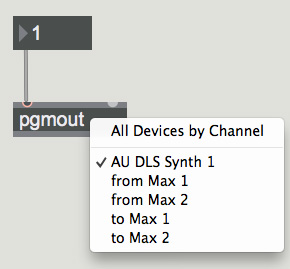
You can also change the sound source by double-clicking the noteout object. The default is AU DLS Synth. Other connected synthesizers and MIDI devices appear here.
The pgmout object can change the program (timbre). For the program-change number / timbre table, see the previous MIDI Message Reference section. Like noteout, double-clicking pgmout switches its destination.
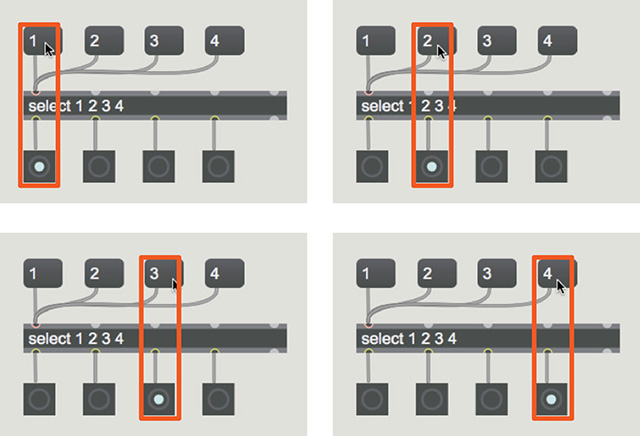
select Object
The select object branches and outputs a bang. When the value received at its first inlet matches an argument, it outputs a bang from the corresponding outlet (in argument order).
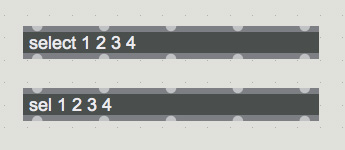
The select object name can be abbreviated. “sel” and “select” are the same object.
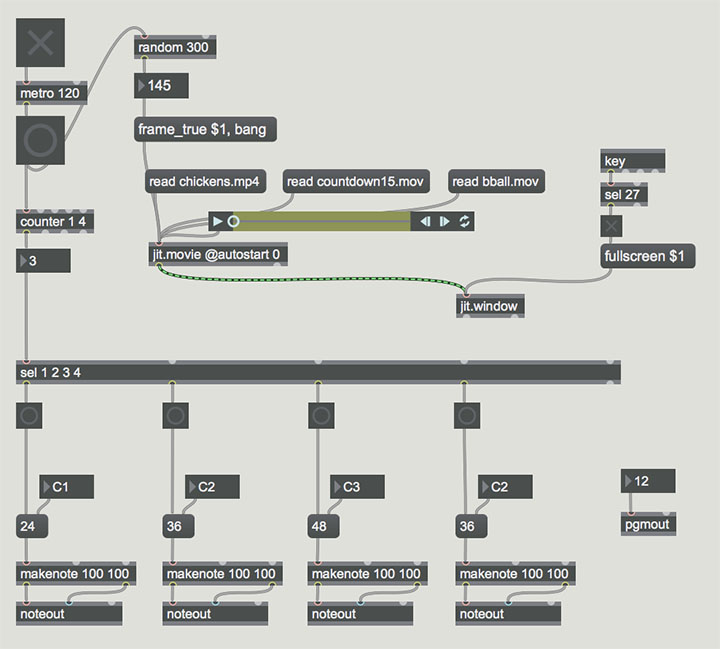
Step Sequencer Patch
Combine the elements you have built so far into the patch shown below.
It works as a step sequencer where audio and video are synchronized.
As needed, change pitches, change the speed (metro), or add key controls.
max2017_21.zip (no longer publicly available)
Linking with a Software MIDI Source (UVI Workstation)
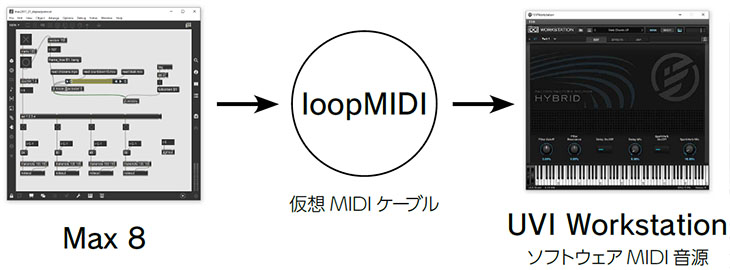
To exchange MIDI signals between different applications on Windows, you need to install virtual MIDI cable software. There are several options; here we use loopMIDI.
Setting Up loopMIDI and UVI Workstation
① Installing loopMIDI and UVI Workstation
Download and install from the URLs below.
- loopMIDI https://www.tobias-erichsen.de/software/loopmidi.html
- UVI Workstation https://www.uvi.net/jp/instruments/uvi-workstation.html
② Starting a Virtual MIDI Port
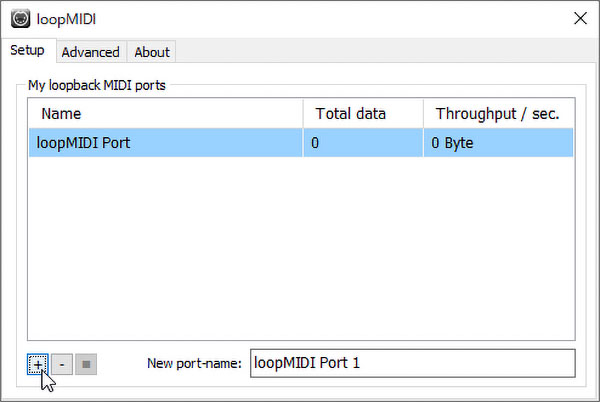
Launch loopMIDI and click the “+” button at the bottom-left of the window to create a new port “loopMIDI Port” (the name can be anything).
③ UVI Workstation Output and MIDI Input Settings
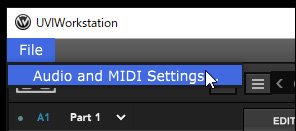
Launch UVI Workstation and click File menu > Audio and MIDI Settings.
The Audio and MIDI Settings window is displayed (below).
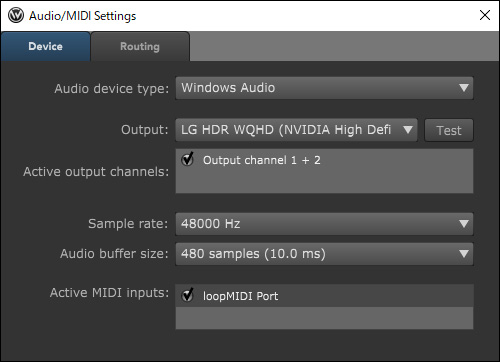
Change Output to match your environment. Press the Test button to confirm sound.
※ Depending on your environment, the Audio device type may need to be DirectSound rather than Windows Audio for sound to play.

Check the loopMIDI Port under Active MIDI inputs. Note that loopMIDI must be running for it to appear here.

④ Loading a Sound Library
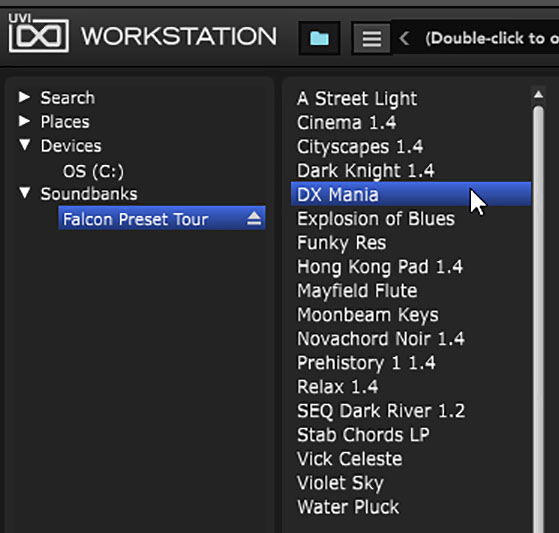
Click the folder icon, and double-click any sound library under Soundbanks > Falcon Preset Tour.
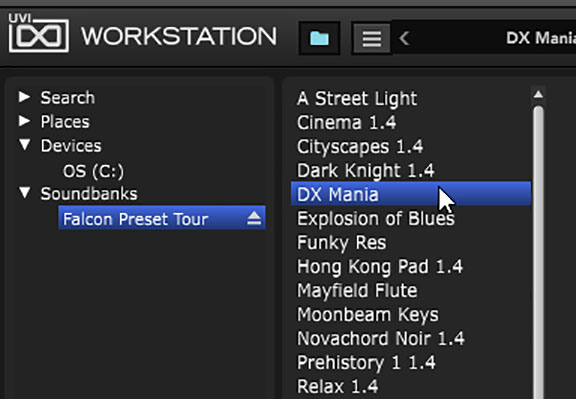
⑤ Performance Test
Click the icon below to display the Keyboard interface.
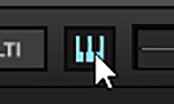
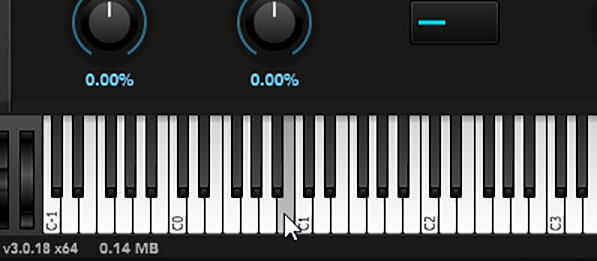
Click the keys to test that sound is produced.
Linking Max with UVI Workstation
① Configuring noteout’s Output Destination
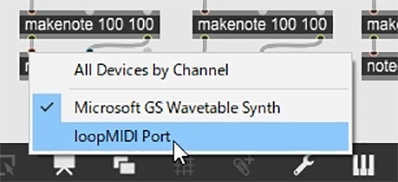
Double-click noteout while locked, and select loopMIDI port from the list.
You need to change the destination of every noteout.
② Linking Max and UVI Workstation
Run the Max patch and confirm that UVI Workstation produces sound.
Timbre changes (pgmout) are not supported in this configuration.
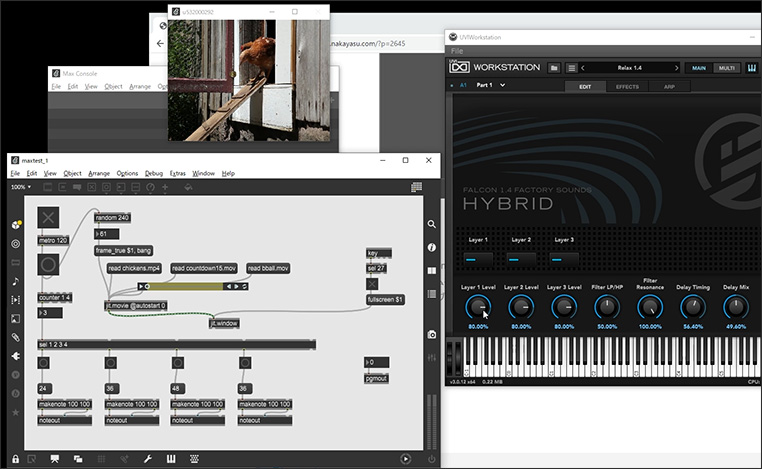
③ Trying Other Sound Libraries
Try changing the sound library.
UVI Workstation supports playing multiple sound libraries simultaneously, but this patch does not implement that.