MadMapper Basics 1
Updated: 2026-05
This article was written before 2020. It is kept here as an archive — the content is outdated and some links may no longer work.
What is MadMapper?
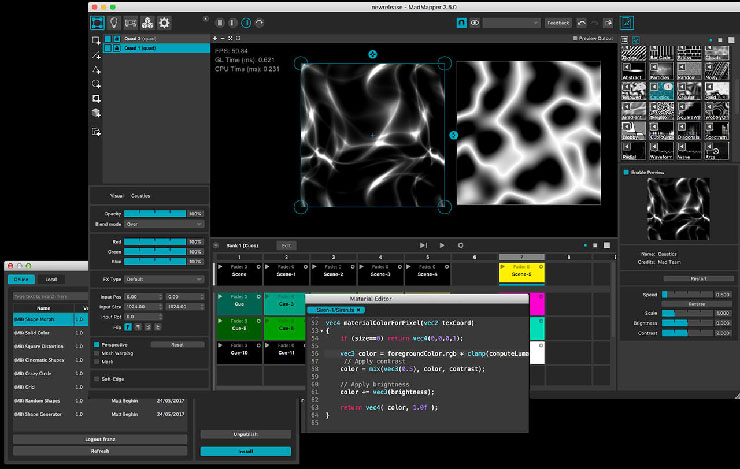
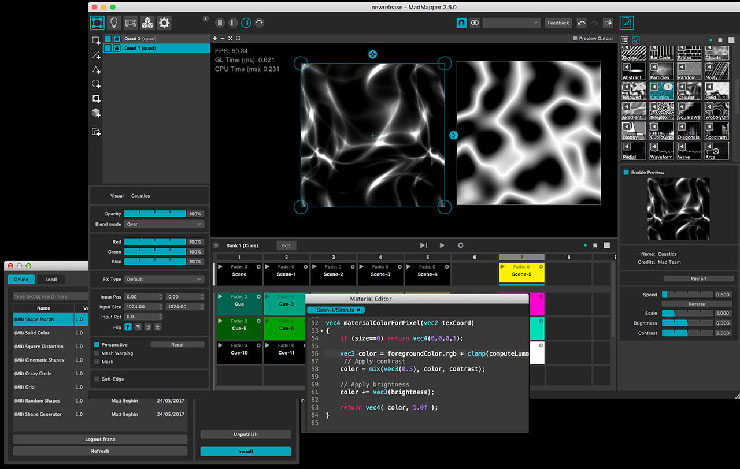
A simple yet powerful video mapping software. It reportedly holds the top global market share. While versions 1 through 2 were available only for Mac, version 3 and later support both Mac and Windows. Starting with version 3.5, the addition of “Scenes & Cues” has enhanced its video playback capabilities.
The MadMapper website features case studies of artists who use MadMapper. It also includes examples of techniques, making it a valuable resource.
Various mapping software
Video mapping software can be categorized into three types: dedicated mapping software, VJ-style software, and media programming software. While MadMapper was originally positioned as dedicated mapping software, the addition of the Scenes & Cues feature has enhanced its video playback capabilities. In live stage production settings, media servers such as disguise and Watchout are commonly used.
http://projection-mapping.org/software/
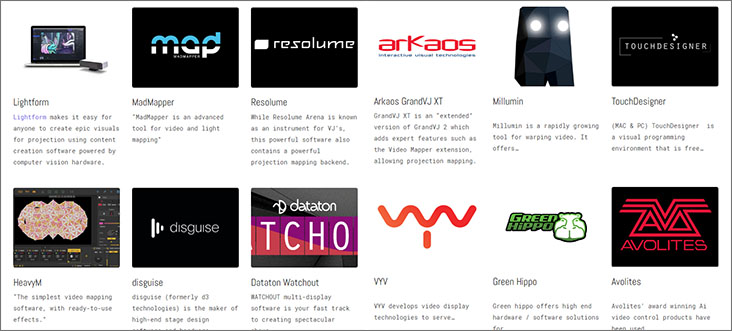
Products like Lightform, which allow users to 3D-scan objects for projection, have also appeared on the market.
MadMapper Pricing
Rent
| 1 month | 35 € | approx. 4,300 yen |
| 3 months | 89 € | approx. 10,000 yen |
| 6 months | 139 € | approx. 17,000 yen |
| 1 year | 199 € | approx. 24,000 yen |
Perpetual License
| 2 computers | €359 + tax | approx. 50,000 yen |
| 5 computers | €853 + tax | approx. 110,000 yen |
| 10 computers | €1,687 + tax | approx. 220,000 yen |
Educational License
| 2 computers | €259 + tax | Approx. 35,000 yen |
| 5 computers | €609 + tax | Approx. 80,000 yen |
| 10 computers | €1,204 + tax | Approx. 160,000 yen |
Download the Demo Version
https://madmapper.com/try-buy/try-madmapper/
We use the Educational version in class, but you can install the demo version on your own computer to practice.
The demo version has the following limitations.
- Unable to load or save projects
- Unable to copy and paste surfaces
- Watermarks appear on the video
- Space Scanner resolution is 1/4 that of the full version
- Periodic blackouts occur in the DMX output
- Cannot output to miniMAD
Official Tutorial Video
Although there isn’t an official manual for MadMapper, the official MadMapper YouTube channel provides tutorials on how to use most of its features.
https://www.youtube.com/channel/UCC9p0fzuYik453n9fXFjpgg
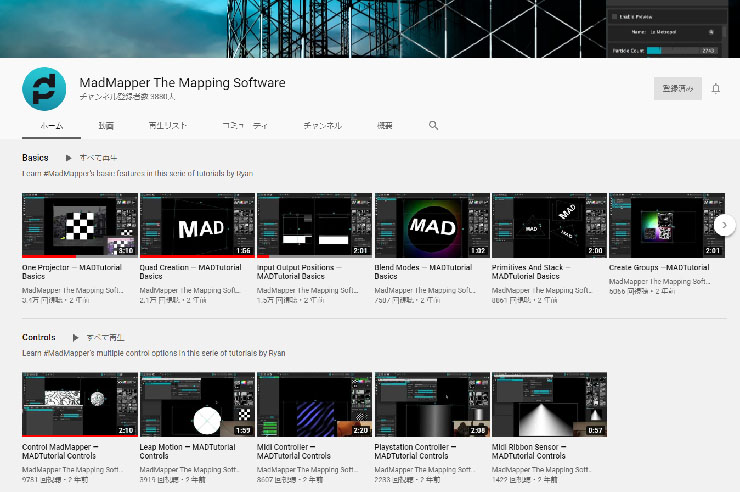
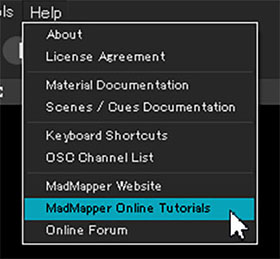
You can also access it via the “Help” link.
What MadMapper Is
Standalone Use
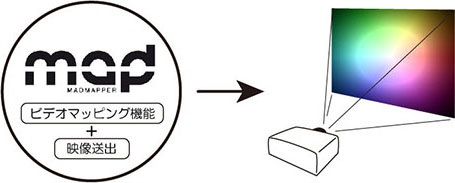
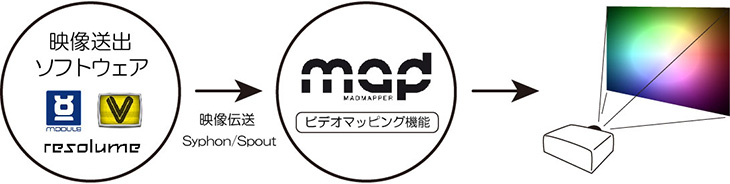
Integration with Video Playback Software (Video Mapping Feature Only)
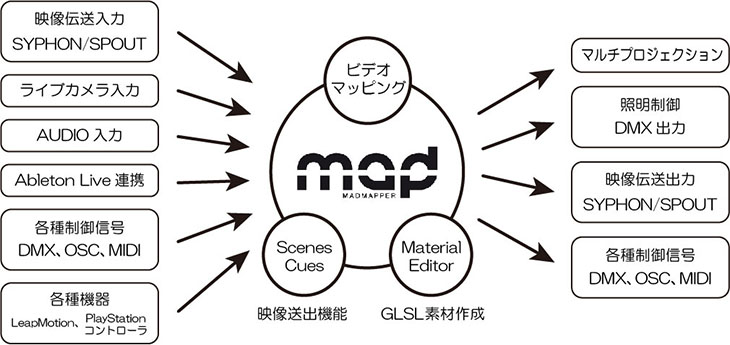
Various Features
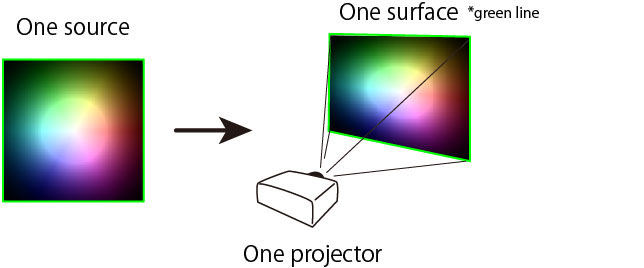
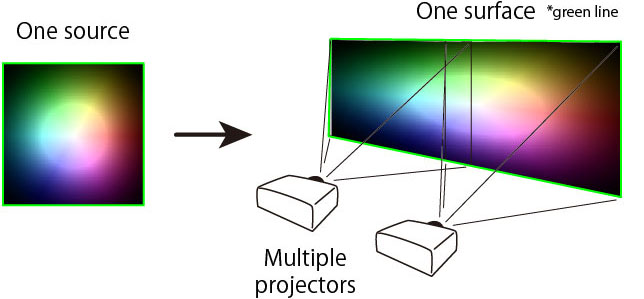
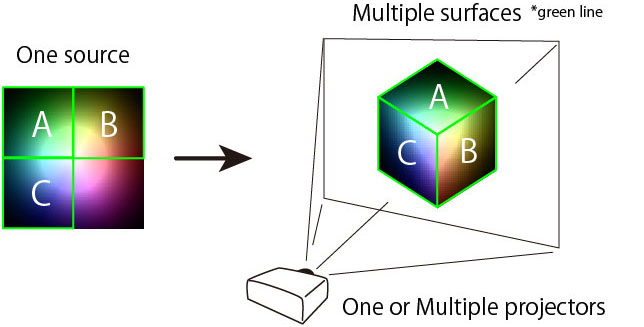
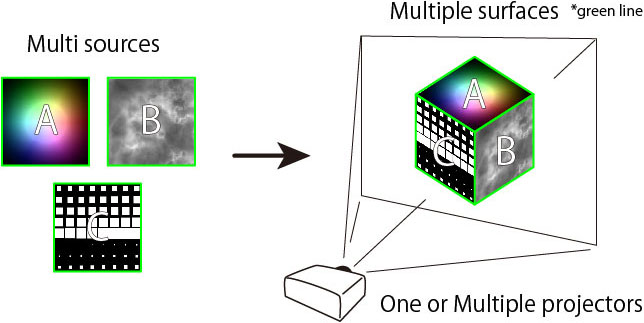
Projection Patterns
Pattern 1
Pattern 2
Pattern 3
Pattern 4
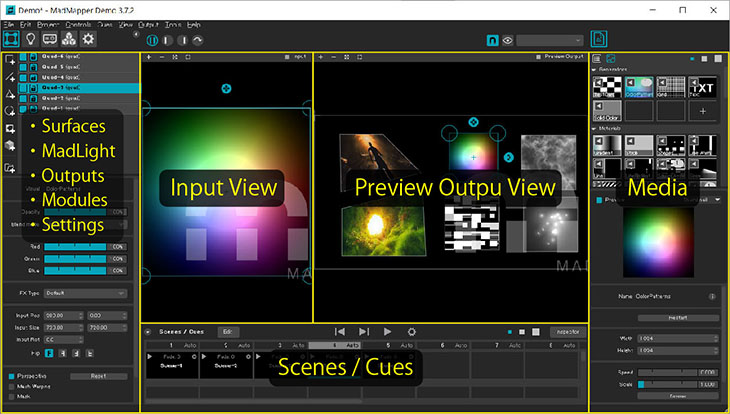
UI (User Interface)
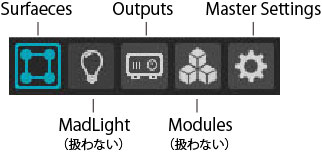
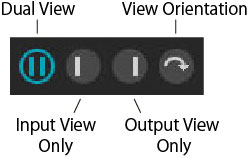
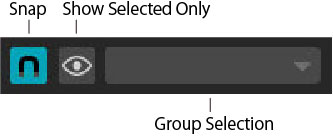
Toolbar
Creating, Opening, and Saving Projects
Creating a New Project
File > New Project (Ctrl + N)
Open Project
File > Open Project (Ctrl + O)
Saving a Project
File > Save Project (Ctrl + S)
Outputs Tab (Projector Settings)
In progress
Set the projector as the output destination
You can also configure multiple projectors, but we won’t cover that here.
Set the desktop as the output destination (for previewing when no projector is available)
Setting the Background Image
Test Pattern Output
Spout Output Settings
Master Settings tab
Media Tab
Surface Tab
Quad
Line
Triangle
Circle
Delete Surface
3 Ways to Create a Surface
- With “Media” selected in the Media tab, create a Surface
- Drag and drop from the Media tab to the Preview Output View
- Drag and drop the material directly into the Preview Output View
Changing Media Linked to Surface
Video Mapping (Preview Output View)
Surface Transformations
Working with Views
Zoom in/out
Move
View All
Zoom-to-fit view of the selected media
Loading Media
Method 1
File > Import (Ctrl+I) Import a single file
File > Import Image Folder: Import a folder of image files
Method 2
Click the plus icon on the Media tab
*Excludes Generators and Materials
Method 3
Drag and drop directly into the Input View or Preview Output View
Automatically added to the “Images” or “Movies” sections of the Media tab
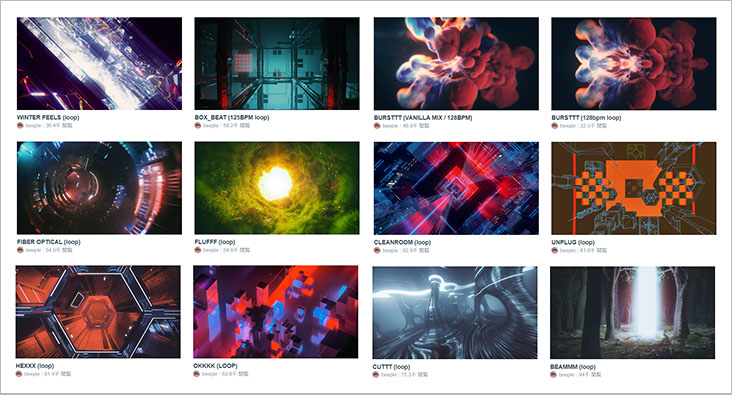
Loop Footage for VJs
Loop footage for VJs is available online, both for free and for purchase. Even if you don’t create your own footage, you can download or buy these materials and enjoy projection mapping.
Video footage available online includes licensing information regarding its use. Please use it within the scope of those terms.
Examples of Loop Material Websites
Spout (Sending video between different applications)
While MadMapper is software designed specifically for mapping, its video output capabilities are limited. As a result, it is common to use VJ software for video output and MadMapper for mapping. In such cases, you need to feed the video output from the VJ software into MadMapper, and Spout was created specifically for this purpose. Spout runs on Windows. On Mac, Syphon is the most well-known option.
Spout is often built into video playback software by default. It is built into MadMapper. In Processing and openFrameworks, you need to install libraries or add-ons to use it.
To feed input into MadMapper, simply enable Spout output in the source application, and it will be automatically recognized in the Spout section of the Media tab.
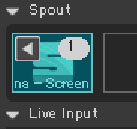
To export from MadMapper, enable “Publish to Spout” in the Projector settings.
Reference Video
Examples of Projection Mapping Techniques
3D Calibration
Batch Settings for Multiple Displays (miniMAD)
Creating Projection Mapping Using Cinema 4D