Fusion 360 Exercise 3
Updated: 2026-05*
This article was written before 2020. It is kept here as an archive — the content is outdated and some links may no longer work.
Making a Single-Stem Vase
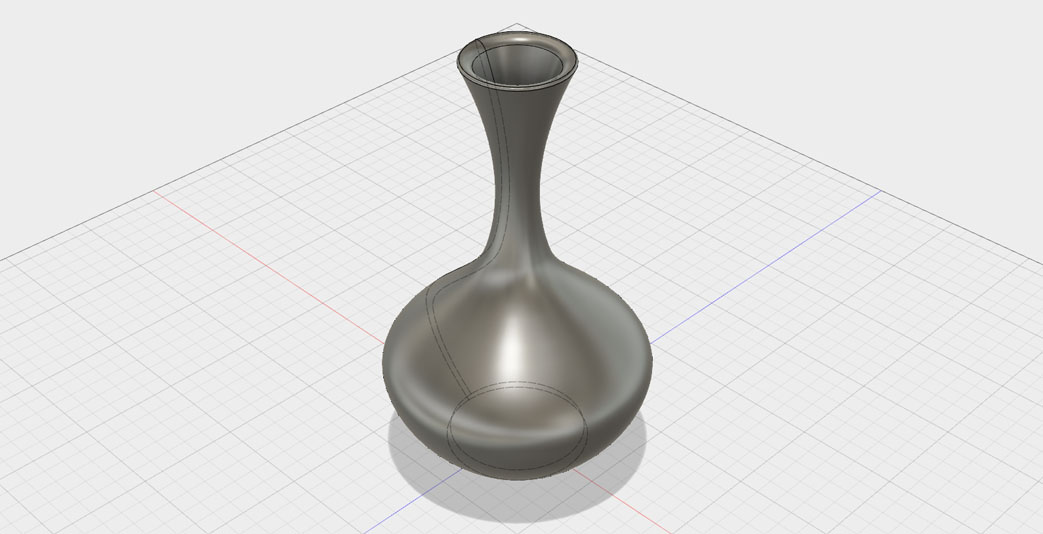
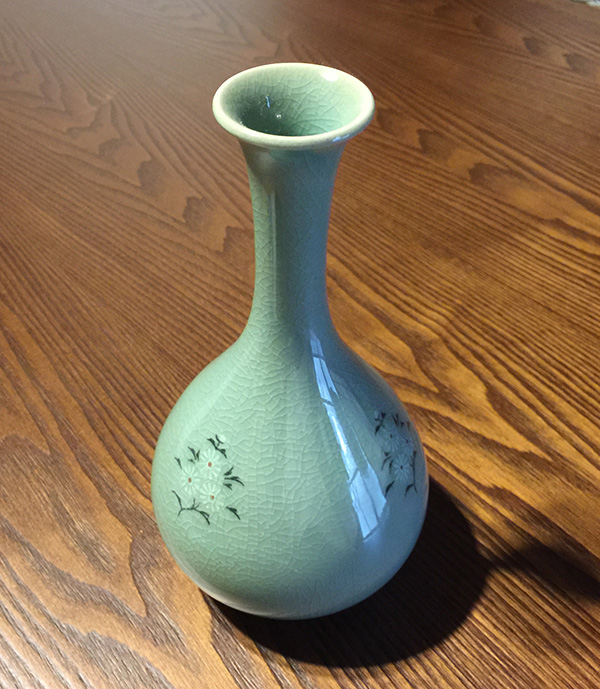
In this exercise, we will make a single-flower vase. The photo below shows the vase we used as a reference.
This document was written in October 2017. Functionality has been verified in Fusion 360 version 2.037.
Creating an Offset Plane
Construction > Use Offset Plane to create an offset plane of the XZ plane.
The first offset plane uses the browser’s origin on the XZ plane.
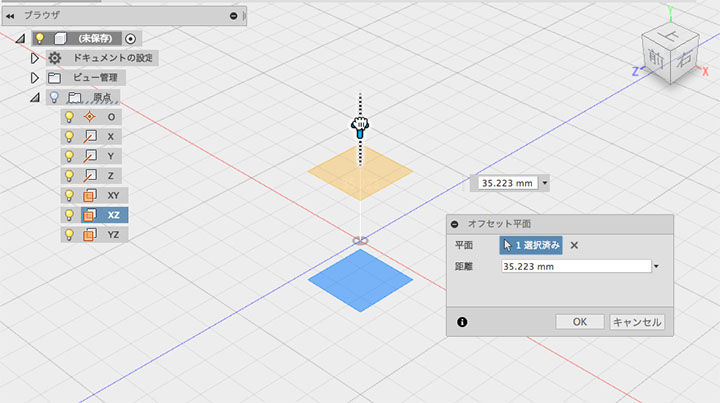
For the second and subsequent planes, right-click on the plane you created and select “Create Offset Plane” from the menu.
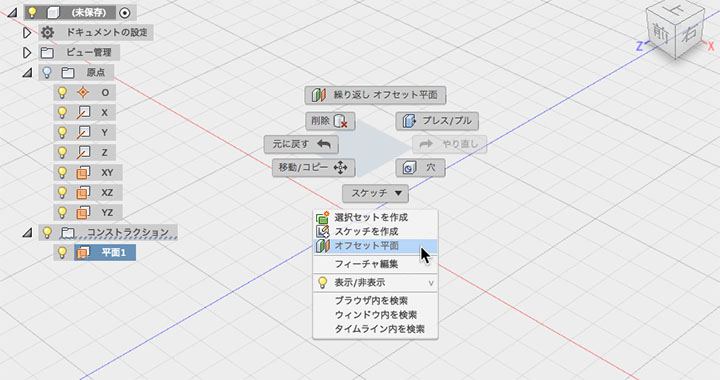
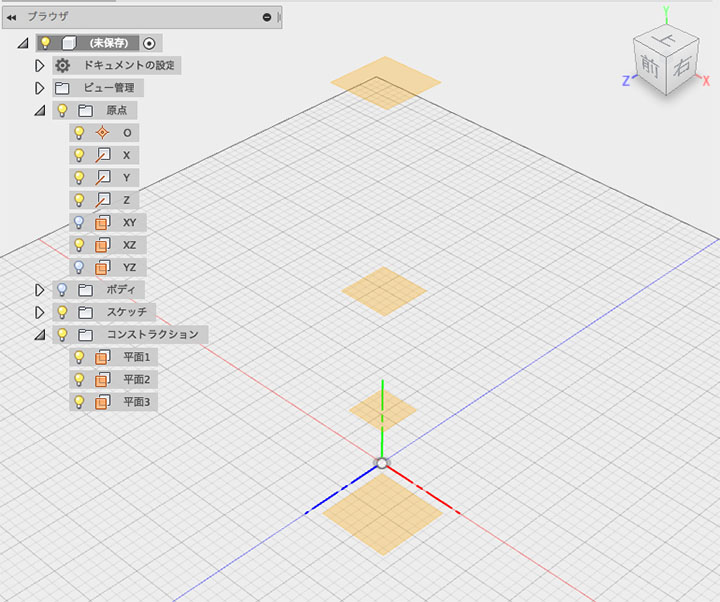
As shown in the figure below, create three offset planes, excluding the original XZ plane (at the bottom). You can view the created planes in the browser’s Construction view.
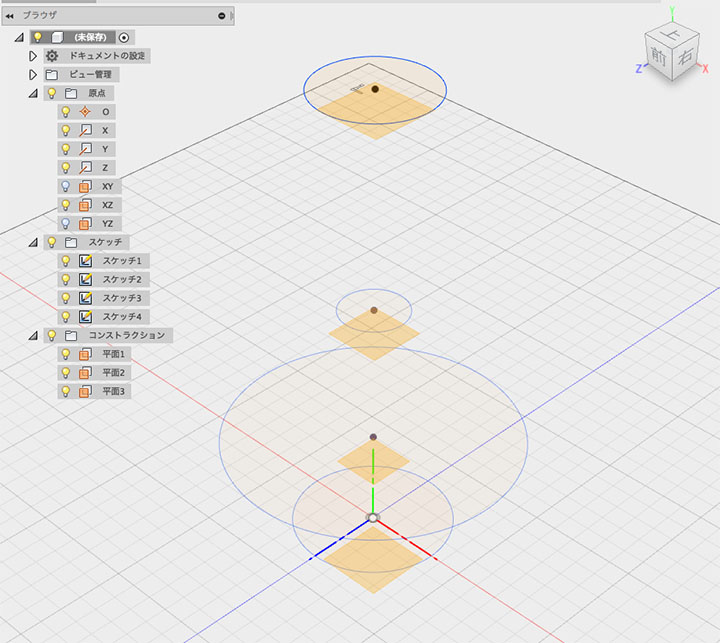
Creating a Sketch (4 Circles)
Using the XZ plane and the three planes you created, create a total of four circle sketches. Stop the sketch each time you create a new one to ensure you create four distinct sketches. Note that this does not involve drawing multiple circles within a single sketch.
Loft
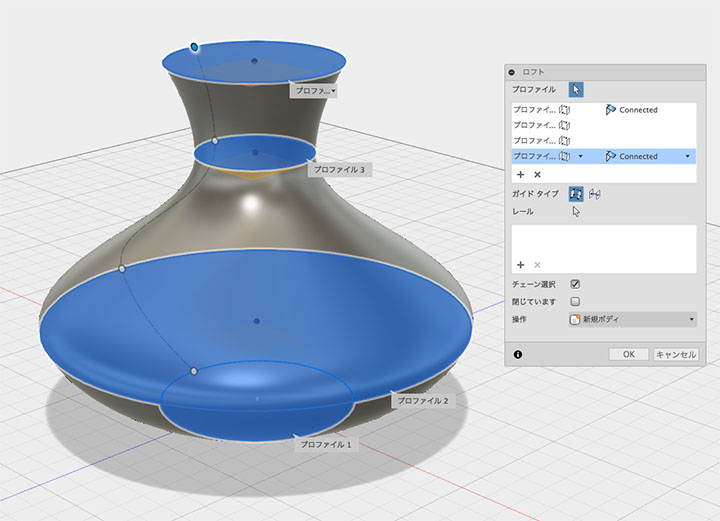
Click Create > Loft. Select the four circles as the profile. The order (ascending or descending) does not matter, but select them in consecutive order.
Modifying the Shape
To adjust the size of a circle, right-click the corresponding sketch icon in the history panel and select “Edit Sketch.”
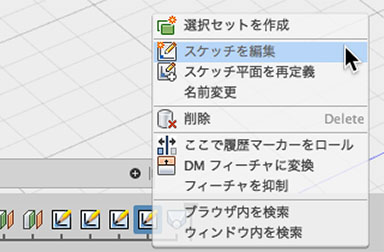
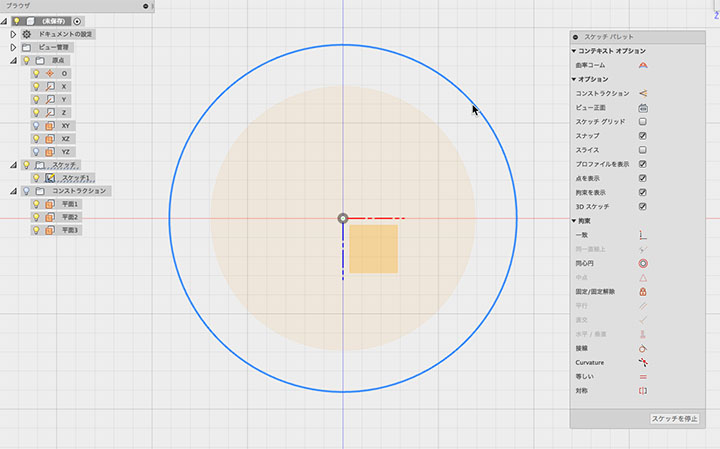
To adjust the height of a circle, right-click the corresponding feature icon in the history and click “Edit Feature.”
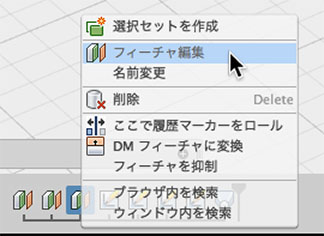
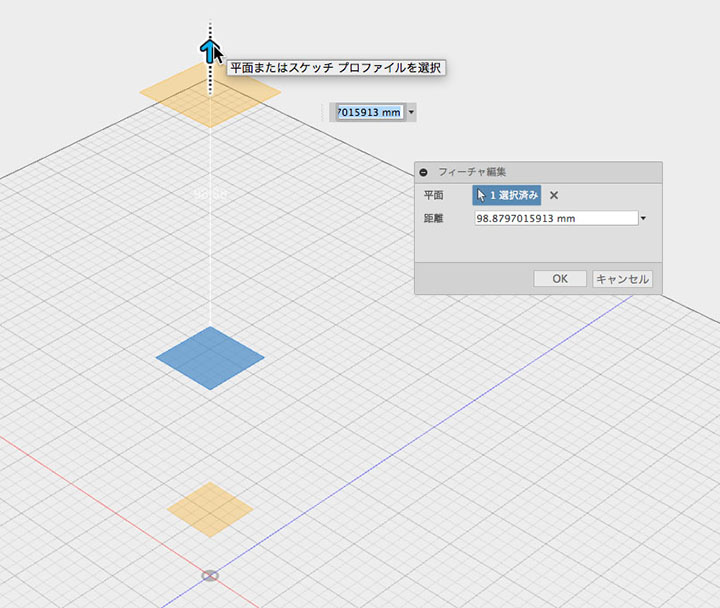
Shape correction complete.
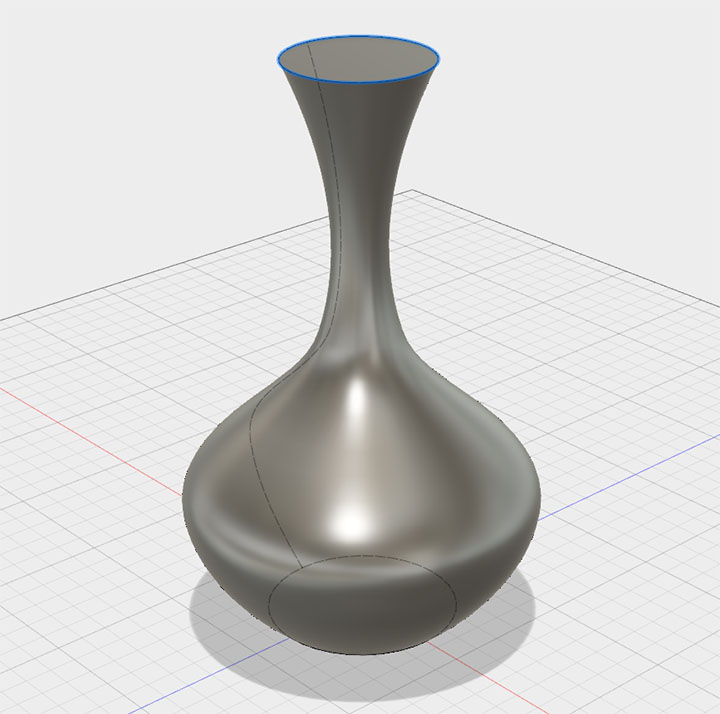
Shell and Fillet
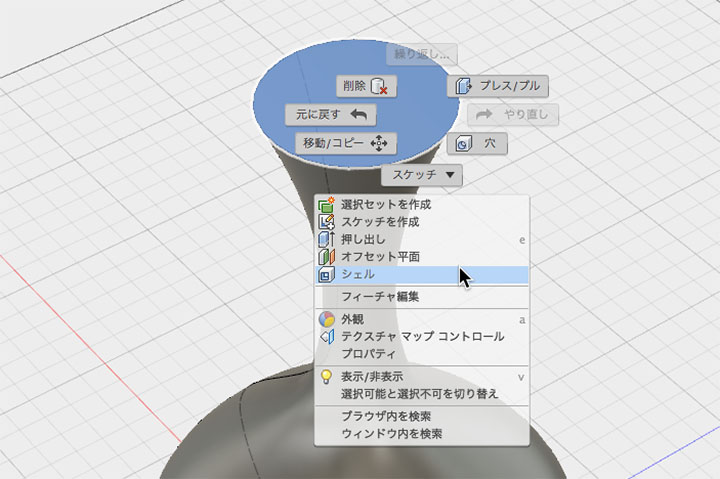
Right-click the top surface to configure the shell.
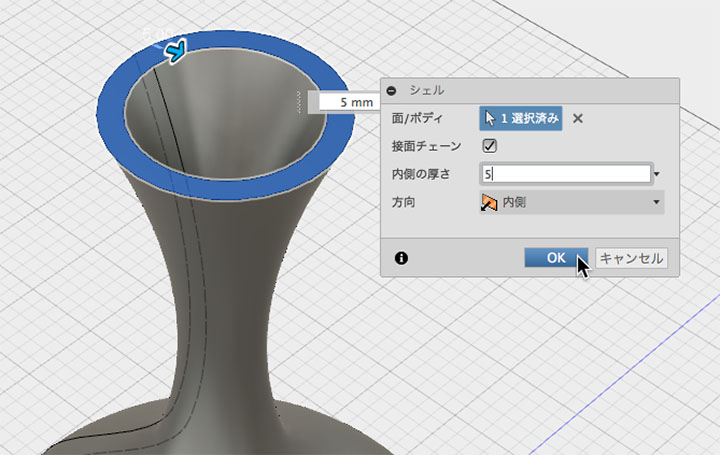
In the figure below, the inner thickness is set to 5 mm.
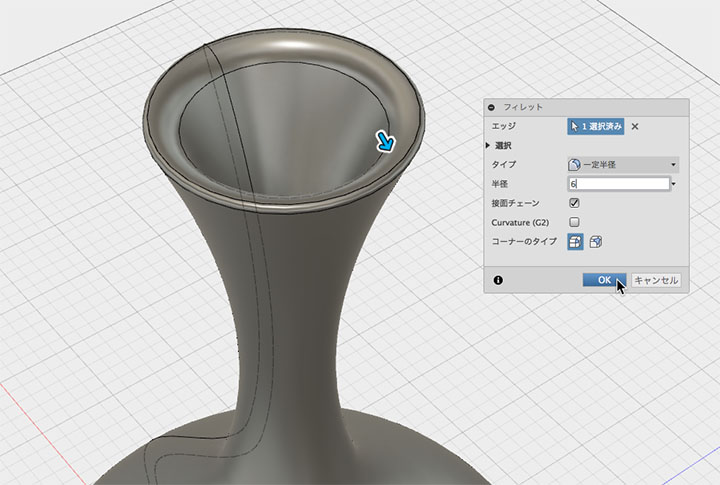
Apply a fillet to the outer edge.
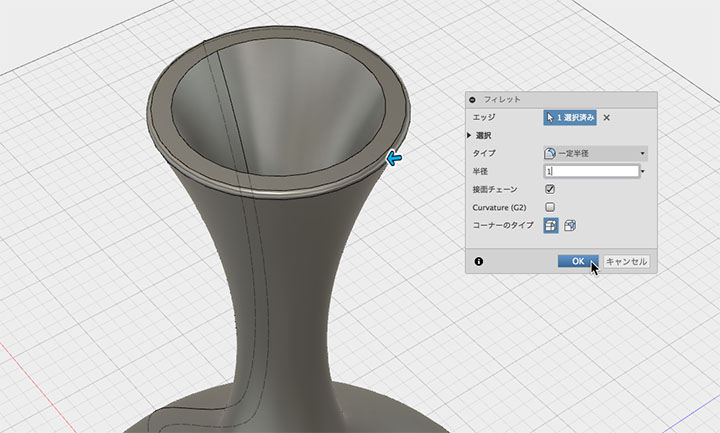
Apply a fillet to the inner edge.
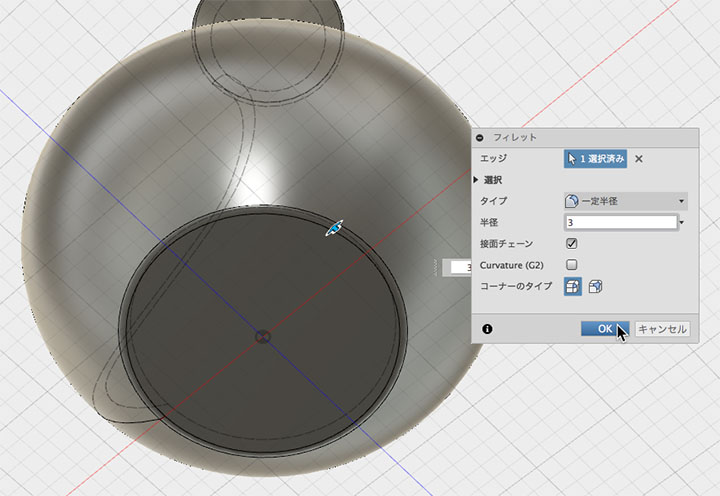
Apply a fillet to the bottom edge.
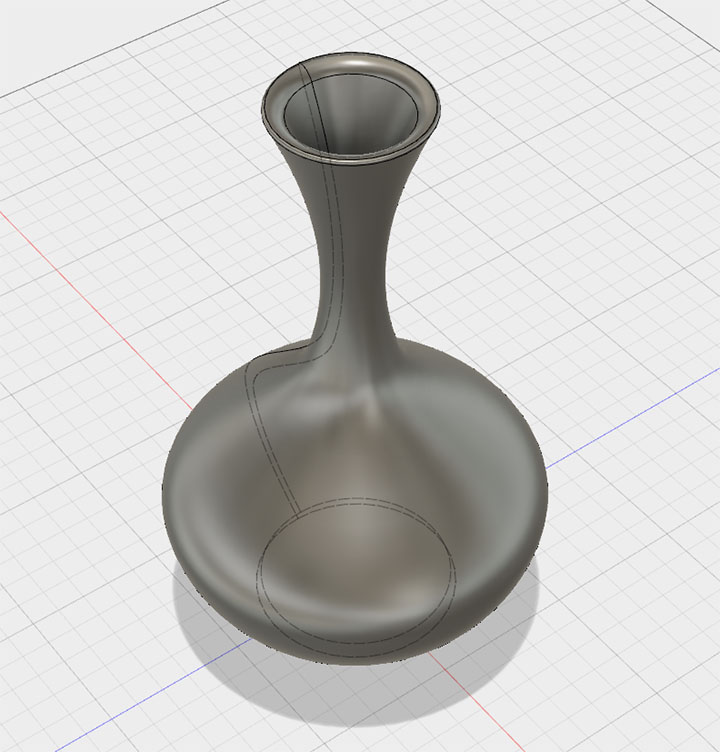
Done.
Variations
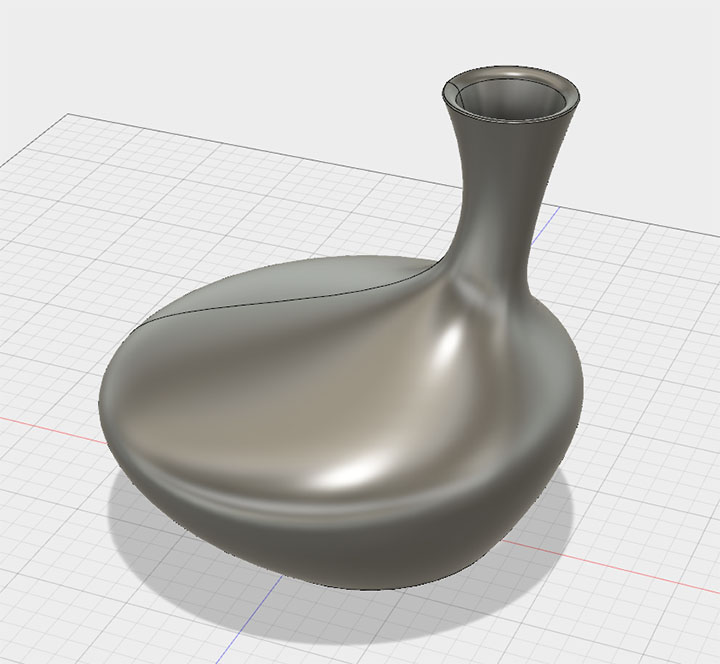
By editing the cross-section sketches and offset plane features in the history, you can create a variety of shapes.